



Contents: Changing the display mode ⤓ Setting date and time ⤓ Mode 1: Trip computer information ⤓ Mode 2: Climate and navigation data ⤓ Selecting the display language ⤓
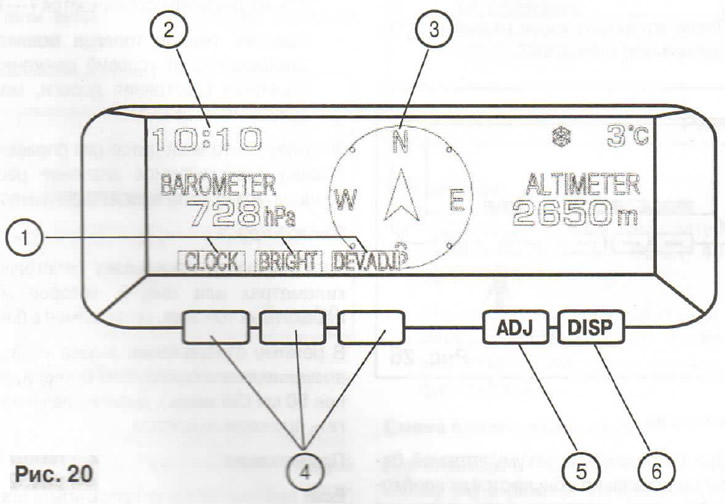
1. Indicators of currently assigned button functions (pos. 4 - functional buttons). This mode displays what action will be caused by pressing this button in the selected functionality mode
2. Digital clock
3. Electronic compass: shows the direction of the car
4. Function buttons
5. ADJ button: This button is used to adjust the display brightness, to set the date and time, and to select the display language
6. DISP button: Pressing this button selects the parameter to be displayed
When you turn the ignition key to the ACC position, the display turns on automatically.
Note: Using wireless devices such as radios and mobile phones near the monitor may cause the screen to temporarily darken and the compass reading to be incorrect.
If you place a cell phone in the monitor compartment, the phone's performance may be impaired.
In some cases, the following properties of the liquid crystal display may appear.
- The appearance of small black spots, flickering of red, blue and green colors.
- In cold weather, the screen darkens or turns red, the image moves slowly.
- The display brightness changes depending on the viewing angle.
All these phenomena are not signs of a display malfunction.
Changing the display mode
By pressing the DISP button (6) (see Fig. 20) you can sequentially switch between modes 1-4.
Modes:
- 1. Trip computer information.
- 2. Climate data.
- 3. Information about the audio system.
- 4. Date and time.
Mode 4: Date and Time
In this mode, the time (A) and date (B) are displayed on the display.
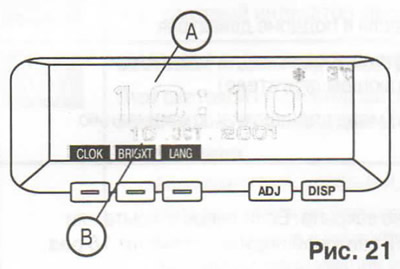
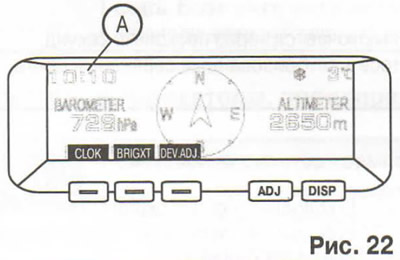
If a display mode other than Date & Time is selected, only the time is displayed in the upper left corner (A).
Setting date and time
The digital clock can be set in the following modes.
- On vehicles equipped with the original MITSUBISHI MOTORS audio system: in automatic and manual modes.
- For vehicles not equipped with a genuine MITSUBISHI MOTORS audio system: manual mode only.
Automatic mode (for cars with original MITSUBISHI MOTORS audio system)
In automatic mode, local time is set automatically by signals from local RDS stations. In this mode, the CT symbol appears in the lower right corner of the audio system display (local time is transmitted with the RDS signal).
Manual setting mode:
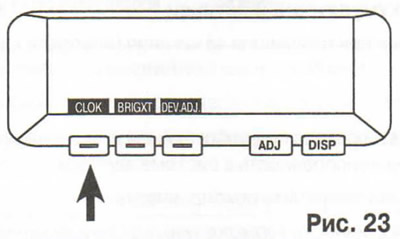
1. Press the ADJ button (5) (see Fig. 20). The new function button symbols will appear on the display.
2. Press the CLOCK button (arrow) (see Fig. 23).
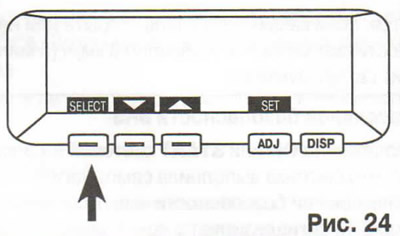
3. Press the SELECT function button to move to the month, date, year, hour and minute settings. Each time you press SELECT, the display moves from hour to minute, second, date, month and year.
If you press and hold the SELECT button for more than 1 second, the system will switch to fast forward mode. When selecting seconds, the display will automatically show 0 seconds.
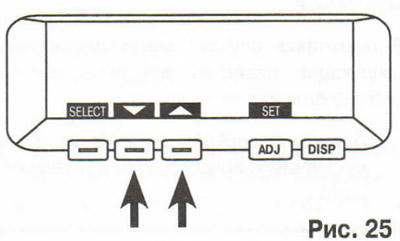
4. Setting the desired value is done by pressing the function buttons
 or
or  . If you press and hold the button or more than 1 sec, the value will start changing faster.
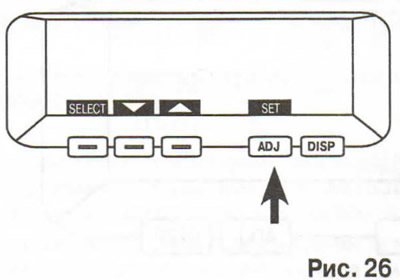
5. After setting the clock, press the SET function button.
Note: When the battery is disconnected, the display is reset to zero and you must set the clock again by repeating the steps described above.
Mode 1: Trip computer information
The trip computer displays the following information.
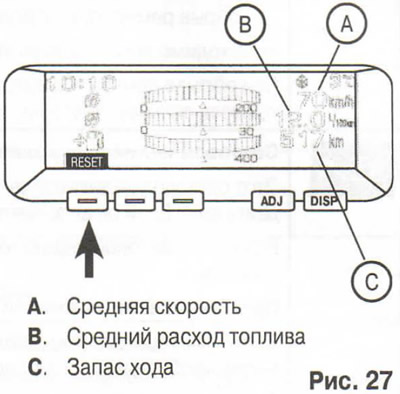
Average driving speed/average fuel consumption
These parameters display the average driving speed (in kilometers per hour or miles per hour) and average fuel consumption (in l/100 km or km/l) since the last reset.
Reset the readings to zero at the point where you want to start measuring, and the average fuel consumption will be counted from that point.
To reset the readings, press the RESET function button.
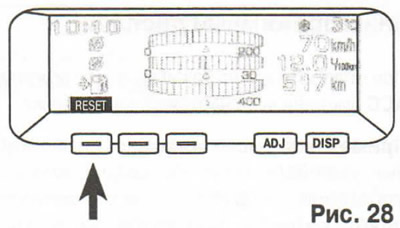
Notes:
- If the system cannot calculate a specific average speed value, "--- km" will be displayed.
- Average fuel consumption varies depending on the vehicle's driving conditions (road conditions, driving style, etc.).
This parameter is displayed for reference as the displayed fuel consumption value may differ from the actual one.
Power reserve
This parameter shows the distance (in kilometers or miles) that can be traveled on the fuel remaining in the tank.
In the range display mode, if the range becomes less than 50 km (30 miles), the display will flash orange.
Note: If the system cannot calculate a certain range value, "--- km" will be displayed.
The range constantly changes depending on driving conditions, driving style and other interrelated factors. Accordingly, the value can only be used for reference. It is recommended to refuel immediately after the low fuel indicator light on the instrument panel lights up.
The displayed range is calculated based on fuel consumption data. Once the battery is disconnected, the fuel consumption data is erased from memory, which reduces the accuracy of the system's calculations.
When the vehicle is stopped on a slope, the displayed range may change randomly. This is due to the fuel moving in the tank on the slope and is not a sign of a malfunction.
Refueling a small amount of fuel
After refueling, the range value will be recalculated.
However, if a small amount of fuel (less than 25 l) is added, the range data cannot be updated correctly.
In this case, to obtain the correct data, do the following.
1. In the trip computer information window, press the Adj button to access additional button functions.
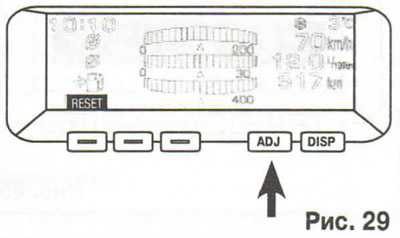
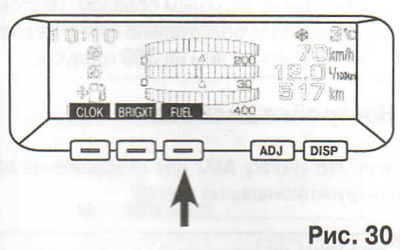
2. Press the FUEL function button and the range data will be recalculated and a beep will sound.
Mode 2: Climate and navigation data
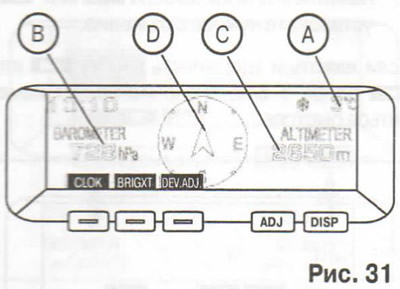
The climate data window displays: ambient air temperature (A), atmospheric pressure (B), altitude (C) and electronic compass (D).
Ambient air temperature
Displays the ambient temperature while the vehicle is moving.
If the air temperature falls below approximately 3°C (37°F), a warning signal sounds and the warning symbol (A) flashes on the display for approximately 10 seconds.
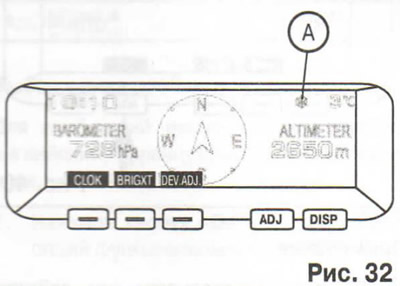
Warning: In these conditions, even if this symbol is not flashing, there is a risk of ice forming, so drive carefully.
Even if other parameters (non-climate) are displayed on the screen, the ambient temperature is displayed in the upper right corner of the screen.
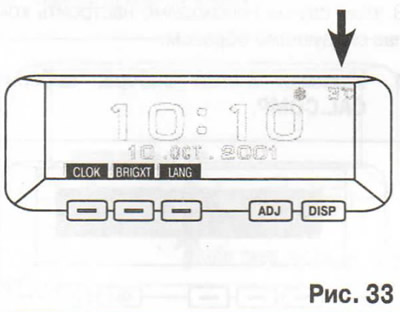
Notes:
- The outside air temperature measurement range is from -44°C (-40°F) to 50°C (122°F).
- Due to the influence of driving conditions, surrounding conditions, etc., the displayed temperature may differ from the actual temperature.
Changing units of measurement
To switch from°C to°F and back, press the (A) button in the climate data display mode and hold it for more than 3 seconds.
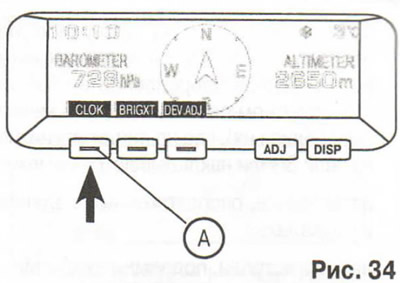
Shows the atmospheric pressure at the location of the vehicle.
Note: Barometer reading accuracy: 2 hPa.
Altimeter
Shows the altitude above sea level at the location of the vehicle.
Notes:
- The altimeter is accurate to 50 m (200 ft). If the vehicle is below sea level, the altimeter displays 0 m (0 ft).
- The altimeter operates based on changes in atmospheric pressure. This means that its operation is affected by changes in weather and other conditions, and its readings may differ from the actual altitude.
- Fluctuations in atmospheric pressure may cause readings to change even when the vehicle is stationary. This does not indicate a system malfunction.
Changing units of measurement
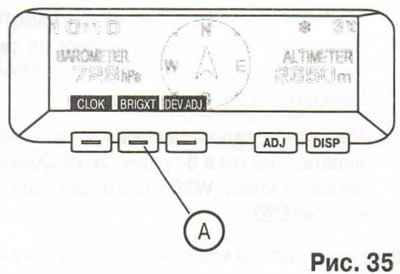
To convert the altimeter units from meters to feet and back, press the (A) button in the climate data display mode and hold it for more than 3 seconds.
Electronic compass
The compass shows the direction of the vehicle's movement in one of 8 azimuths.
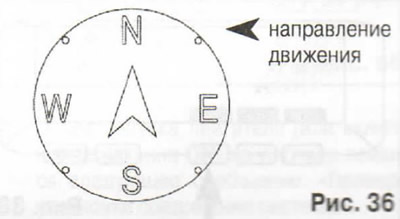
The compass reacts to the Earth's magnetic field, so it may show the wrong direction in heavy traffic, as well as in places (or near them) where interference is superimposed on the Earth's magnetic field lines:
- parking lots located in buildings and basements;
- highways, underground cables;
- zones above subway lines;
- transformer stations;
- areas along railways.
In these cases, the correct compass readings are restored after the vehicle returns to a location where the Earth's magnetic field is not distorted by interference.
Do not install ski racks, antennas, etc. on your vehicle that are attached with magnets. This will affect the compass readings.
Setting the magnetic declination
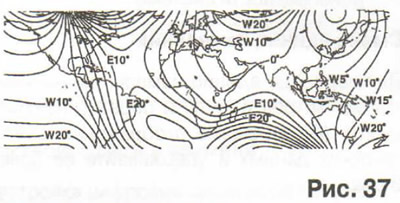
Declination is the difference between true north (the direction of the true north pole) and the direction the compass needle points. Since declination varies from place to place, it must be reset in each region. Otherwise, the compass will show the wrong direction.
The declination is set as follows.
Notes:
- Declension varies in different regions; its approximate distribution is shown in the figure.
- Magnetic declination can be set in 5 degree increments, from 20 degrees west (W20) to 20 degrees east (E20).
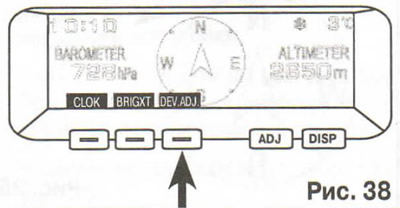
In the climate information display mode, press the ADJ button to display the selection buttons. The display will automatically disappear after about 10 seconds if no button is pressed.
1. Press the buttons to select DEV.ADJ.
2. By pressing the selection buttons
 or
or  set the desired declination.
If you press and hold the button
or more than 1 sec, the value will start changing faster.
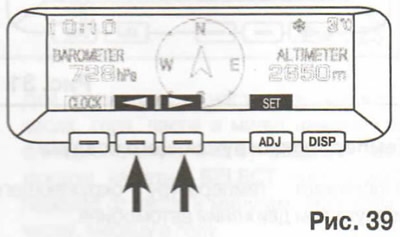
3. After setting the declination, press the SET function button.
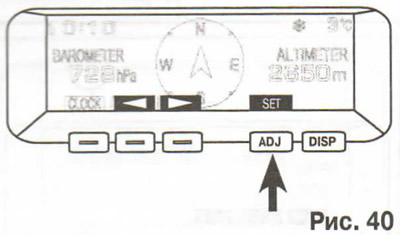
Note: For safety reasons, these actions are permitted if the vehicle speed does not exceed 3 km/h (2 mph).
Setting up the compass
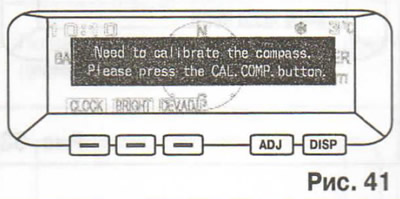
Normally, the compass is adjusted automatically when the vehicle is moving. However, if human intervention is required, a message to this effect will appear on the display for approximately 7 seconds and the direction indicator will start flashing. In this case, the compass must be adjusted as follows.
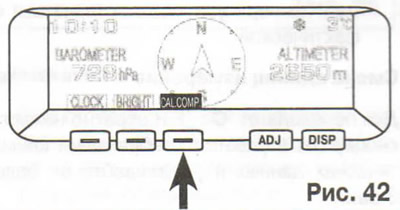
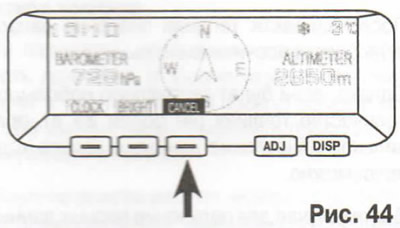
1. Press the selection buttons to select CAL.COMP.
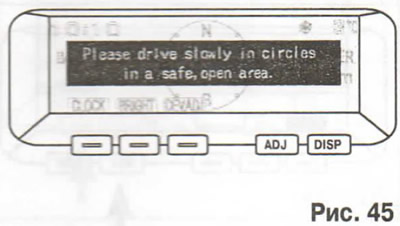
2. In a safe, open area where there are no buildings or other cars, slowly turn the car 360 degrees (make a full circle).
The display will show a warning message: "Please drive the vehicle around the circle carefully and select a safe, open area.".
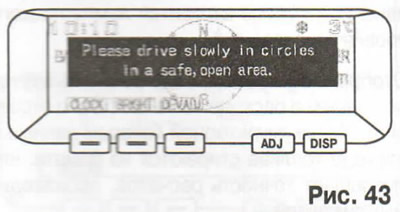
Note: When CANCEL appears on the display, press the CANCEL function button to finish calibration and return to the climate information display.
3. The adjustment will be completed automatically, and the display will show the message "Completed the calibration" "Completion of the compass adjustment process".
Note: If you stop the car in the middle of a turn and reverse it back to its original position, the message "Completed the calibration" may also appear, although the calibration has not been completed properly. Therefore, it is necessary to turn the car at least 360 degrees.
Display settings
Press the ADJ button to display the function button options.
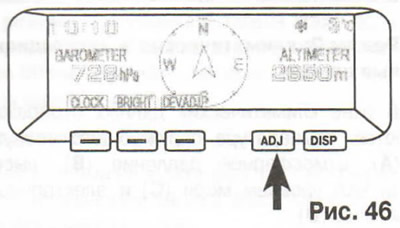
After 10 seconds, the display will automatically return to the previous mode if no buttons are pressed.
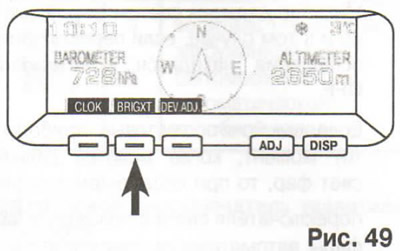
Adjusting display brightness
3. Press the BRIGHT button.
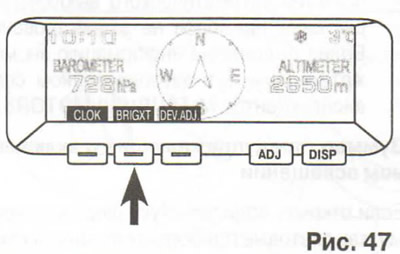
2. By pressing the function buttons
or , set the desired brightness.
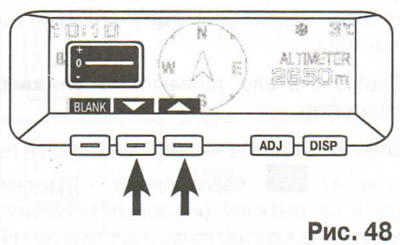
Pressing the button increases the display brightness.
Pressing the button decreases the display brightness.
3. About 30 seconds after the adjustment is completed, the display will return to the previous display mode if no button is pressed.
Notes:
- You can set the display brightness separately for when the lights are on and off.
- If you do not press any buttons, then after about 30 seconds the display returns to its previous display mode.
Turn off the display
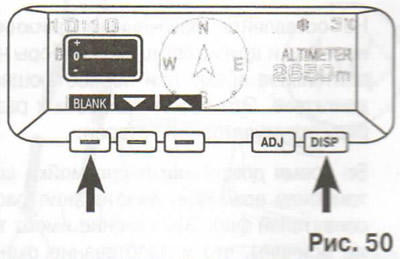
3. Press the BRIGHT button.
2. To turn off the display, press the BLANK function button. To turn the display back on, press the DISP button.
Selecting units of measurement
At the factory, the units of measurement are km/h, l/300 km km and m.
| Mode | Unit of measurement | |||
| Average speed | km/h | miles per hour | km/h | km/h |
| Average fuel consumption | l/100 km | miles/gallon | km/l | l/100 km |
| Power reserve | км | miles | км | км |
| Altimeter | м | feet | м | м |
Selecting the display language
You can select English, French or Spanish for display messages.
3. Press the ADJ button to display the function button options.
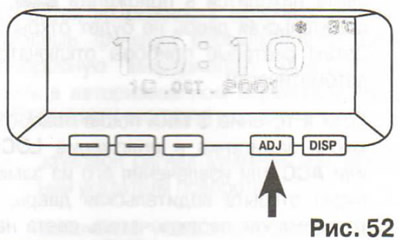
2. Press the LANG button.
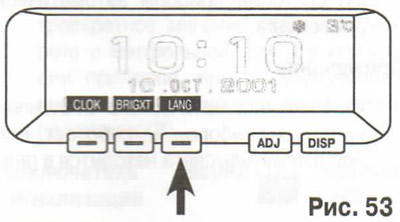
3. The desired language is set by pressing the function buttons
or .
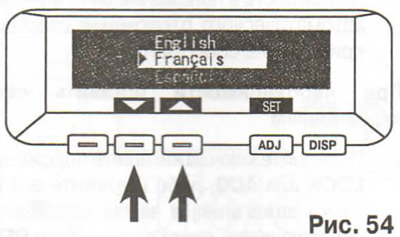
4. After selecting the language, press the SET function button.
[The material was borrowed from the website: MitsubishiMan]
If you want to select other units of measurement, press the button (A) for more than 3 seconds. The units of measurement will change as follows.
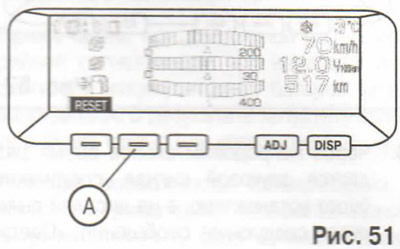
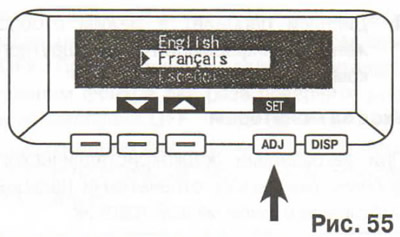
Note: For safety reasons, adjustments may only be made while parked.
When disconnecting the battery
After disconnecting the battery, the data stored in the memory may be erased. In this case, proceed as follows.
Checking the system power supply
If the data is erased from the memory, the following message will appear on the display when the ignition key is turned to the ACC position. In this case, you must do the following.
1. Start the engine (or turn the ignition key to the ON position).
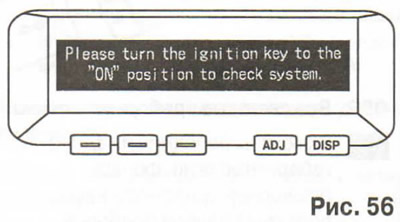
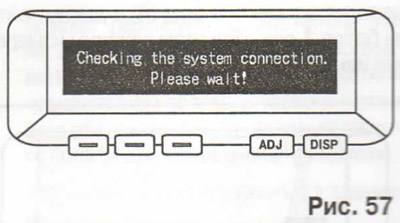
2. After starting the engine (or turning the ignition ON), the following message will appear on the display: "Checking the system connection establishment.".
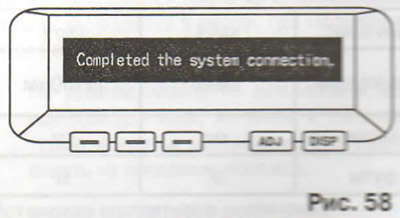
3. After a short time, a beep will sound, the connection will be established, and the following message will appear on the display: "System connection established.".
4. The display will switch to the trip computer information display mode.
Monitor care
If the LCD display becomes dirty (such as from fingerprints), wipe it with a dry soft cloth.
Note: Do not use a damp cloth or abrasive cleaners as this may damage the display.